macOS 27 or laterApple RAW processingLocal image processingHigh-bit-depth export
Prepare your photograph with Apple's RAW adjustments and inspect its capture information.
From camera RAW to your editor
A considered start. A flexible finish.
Prepare the rendering you want, examine the result and take it into the next stage of your photographic workflow.
01 / Prepare
Control at the RAW stage
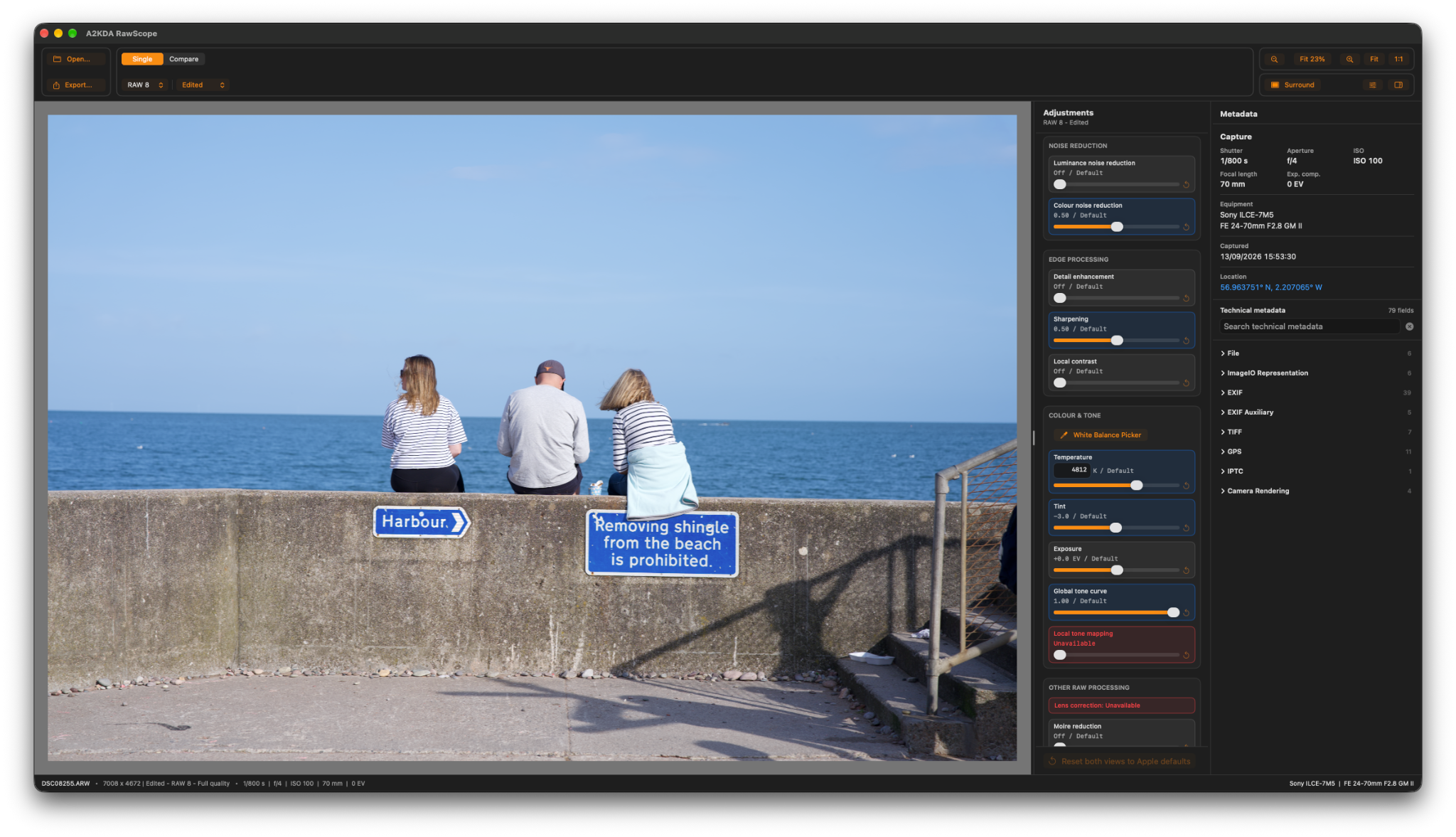
Adjust exposure, white balance, tone, detail and noise reduction using the controls available for your photograph and selected Apple processor.
Start from Apple's calibrated defaults, and restore those exact values with Reset. Set white balance from a neutral area in your photograph using the White Balance Picker.
02 / Inspect
See what each change does
Work with a single rendering, compare processors, or use Before/After to inspect your adjustments against Apple's default rendering. Synchronised pan and zoom and true 1:1 inspection help you examine fine detail.
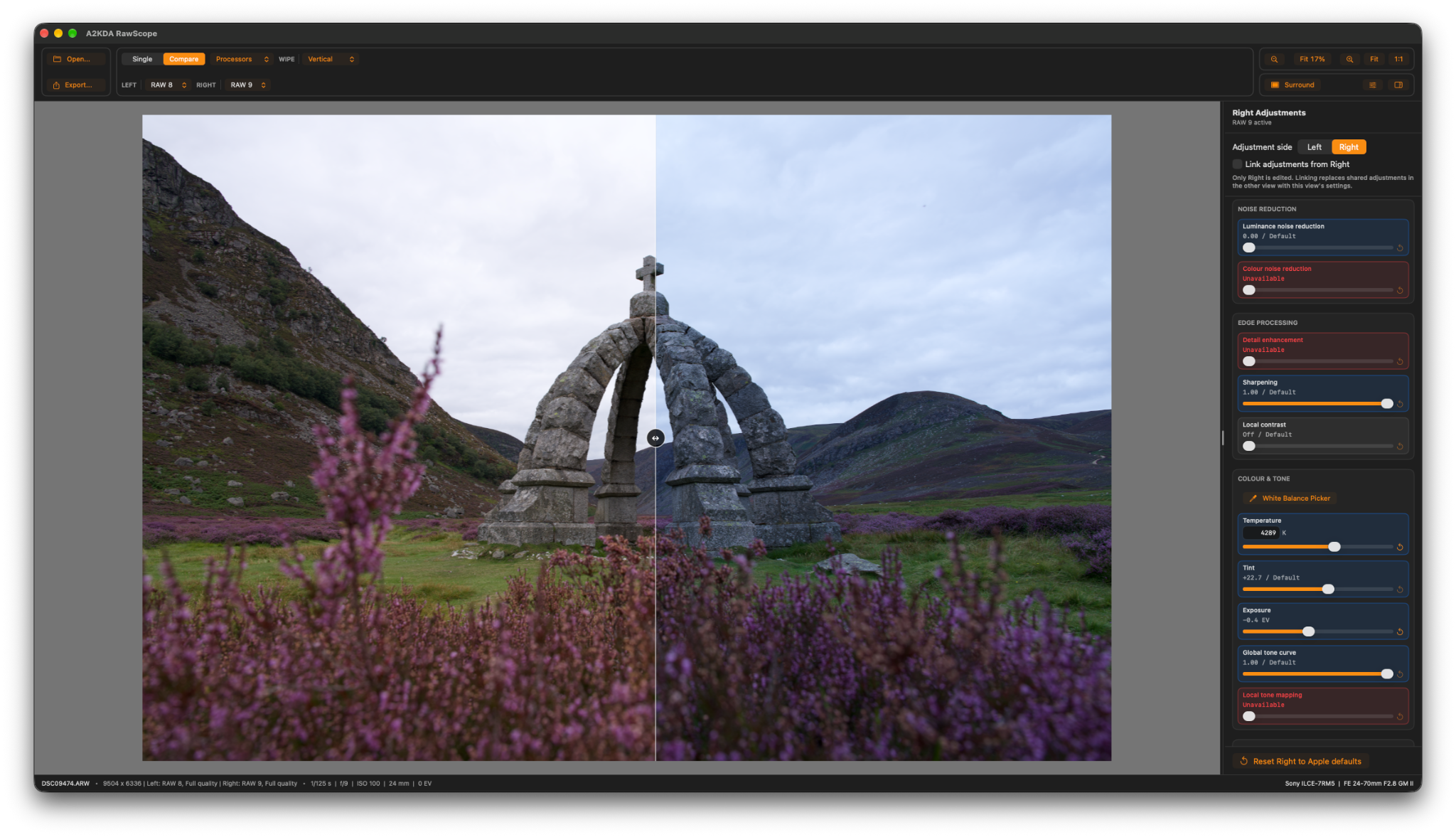
Where supported, compare RAW 8 and RAW 9, two generations of Apple's RAW processing.
03 / Export
Ready for further editing
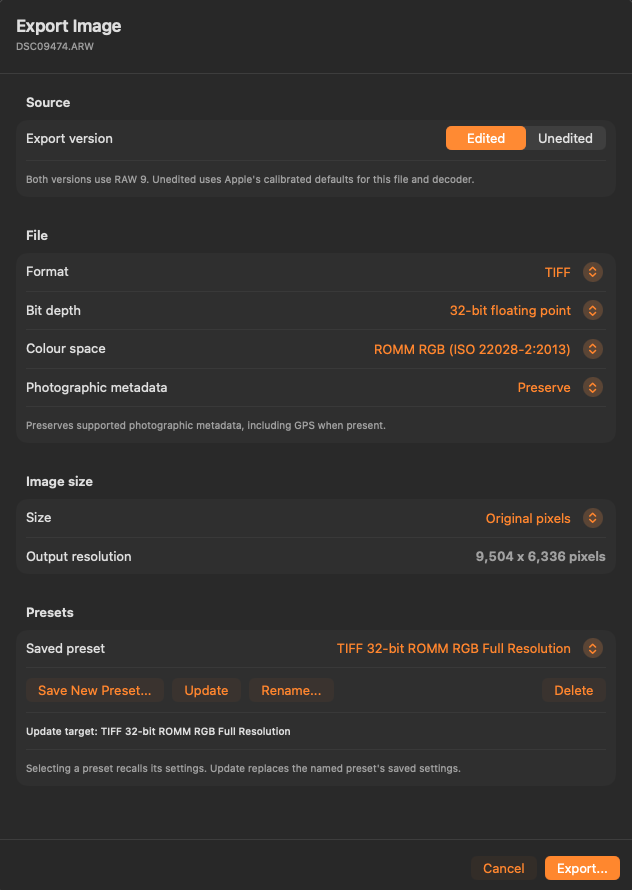
Export at full processed resolution, independently of your viewing zoom. Choose the format, bit depth and colour space that suit your next application.
Save reusable export presets for the workflows you return to.
Compare renderings with a movable divider. RAW 8 is on the left and RAW 9 on the right; this example uses independent adjustments.
Quality starts with the RAW rendering
Apple's processing. Your decisions.
Make deliberate adjustments at the RAW stage, with direct access to the controls available in Apple's camera RAW processing pipeline.
A calibrated starting point
RawScope preserves Apple's calibrated adjustment defaults and restores them exactly on reset. The available controls follow the selected processor and the capabilities of your file.
White balance from the image
Sample a neutral area with the White Balance Picker. Its fixed 21 x 21 source-pixel sample stays consistent at every zoom level, and the result is applied through Apple's RAW adjustments.
Full-resolution output
Your viewing zoom and pan do not change export resolution. Choose high-bit-depth output and a suitable colour space to carry the prepared rendering into your preferred editor.
Output with room to work
Choose how your photograph moves on.
16-bit TIFF offers a practical starting point for further pixel editing. Floating-point TIFF and OpenEXR are available for workflows that support them. Match the output to your destination application's capabilities.
Formats and precision
TIFF
8 or 16-bit integer; 16 or 32-bit floating point
PNG
8 or 16-bit integer
HEIF
8 or 10-bit integer
JPEG
8-bit integer
OpenEXR
16-bit floating point
Colour and photographic metadata
Choose sRGB, Display P3, Adobe RGB (1998) or ROMM RGB for supported JPEG, TIFF, PNG and HEIF outputs. OpenEXR uses Extended Linear sRGB.
Keep photographic metadata where supported, or remove it for sharing. Preserved metadata can include embedded GPS coordinates. Supported exports retain standard RawScope application provenance even when photographic metadata is removed. OpenEXR is provenance-neutral.
A wider colour space or greater bit depth does not automatically improve a photograph. Choose settings your next editor can read and preserve.
Choose the output for your next editor. Shown here: full-resolution, 32-bit floating-point TIFF in ROMM RGB, with a saved preset.
Your photographs, processed locally
On your Mac. Under your control.
RawScope processes the RAW files you select and saves exports where you choose. No RawScope account is needed. There is no telemetry or analytics. RawScope does not upload your photographs.
Requires macOS 27.0 or later. RawScope opens Apple-recognised camera RAW files that Core Image can decode on your Mac. RAW 8, RAW 9 and available adjustments follow the runtime capabilities Apple reports for the loaded file.
RawScope works with supported camera RAW files. Exported images can be opened in other applications that support the chosen format, bit depth and colour space.
RawScope is being prepared for its first Mac App Store release. A download link will be added when it is available.